
Your accounting team closes February on March 5. On March 12, a consultant submits a timecard for February 28. Now your PSA and accounting systems are out of sync—and finance is asking questions you can’t answer.
Certinia PSA doesn’t have native period closing like your accounting system does. But you can build it yourself.
The Goal
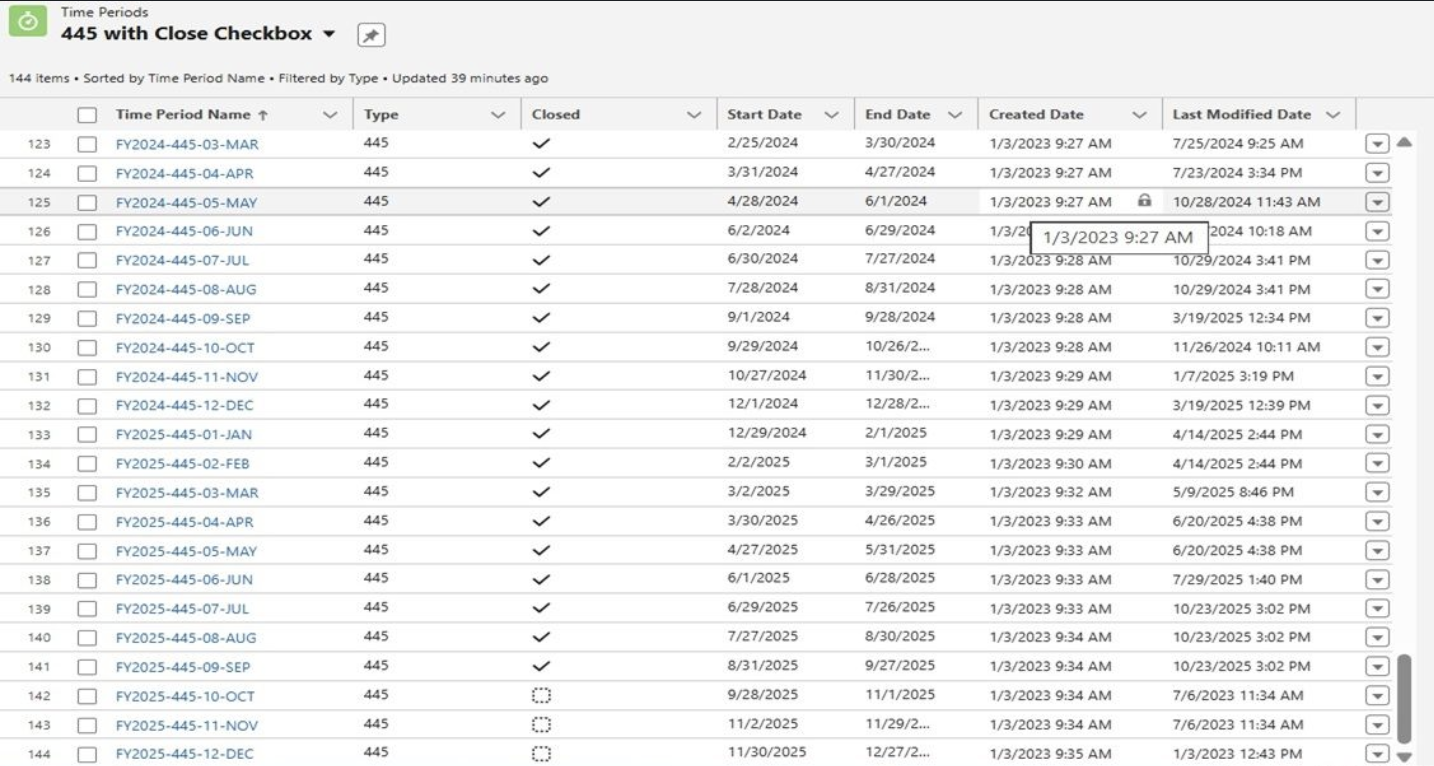
Create a period lock that prevents users from logging time, expenses, milestones, budgets, or adjustments in closed periods—while giving accounting the flexibility to reopen periods or keep specific projects open.
Technical Design
Custom Fields (3)
- Closed (Checkbox) on the PSA Time Period object: When checked, the period is locked
- Keep Open To Time & Expense Entry (Checkbox) on the PSA Project object: Allows project-level overrides
- Time Period (Lookup) on each of the 5 objects below: Links each record to its corresponding time period
Objects to Update (5)
- Timecard Split
- Expense Line
- Misc Adjustment
- Milestone
- Budget
For each object:
- Add a lookup to PSA Time Period
- Auto-populate it via trigger based on transaction date
- Add a validation rule:
- If ‘Time Period. Closed = TRUE’ AND ‘Project.Keep Open To Time & Expense Entry = FALSE’
- Block the save with an error like: “Time period closed for entry. Please contact accounting.”
How it works
When accounting closes a period, they check the Closed box for that time period. Any new entries in that period are blocked.
Need to make an exception?
- Uncheck ‘Closed’ temporarily
- Or check ‘Keep Open To Time & Expense Entry’ on a specific project
Some teams close monthly. Others close weekly. You choose the cadence. You control the access.
We built this in 2015 after a request from our accounting manager. Ten years later, it’s still catching late submitters, preventing rebills, and keeping PSA and accounting in sync.